
ELG · Internal system · 2024–25
One back office for a whole car fleet
I designed the internal system Eurolease Group runs its car business on: the fleet, the money each car makes, every client and supplier, and the contracts for each rental product, in one back office.
I was the only designer, from 2024 to 2025. The system is built and in use by ELG's team.
- Role
- Sole designer — UX flows and UI
- Scope
- Fleet, asset finance, counterparties, onboarding, contracts for four products
- Users
- ELG's own team — an internal system
- Status
- Built and in use
01 · The project
The project
ELG — Eurolease Group — leases, rents and sells new and used cars in Bulgaria and North Macedonia. Amigo, elsewhere on this site, is one of its brands, and SIMPL and Ready 2 Go are products its contracts are written for. Behind them sits one back office in ten modules: assets, contracts, invoices, debt, nomenclatures, reports, amortisation, insurance, billing and clients.
The file draws the system module by module: the fleet board and a five-step form for adding a car, each car's finances, the counterparties with a form for each kind of client, and a contract wizard for each of four products — on a layout kit with a top bar and a side menu, open and collapsed.
02 · Design decisions
Design decisions
- 01
The fleet is the first screen
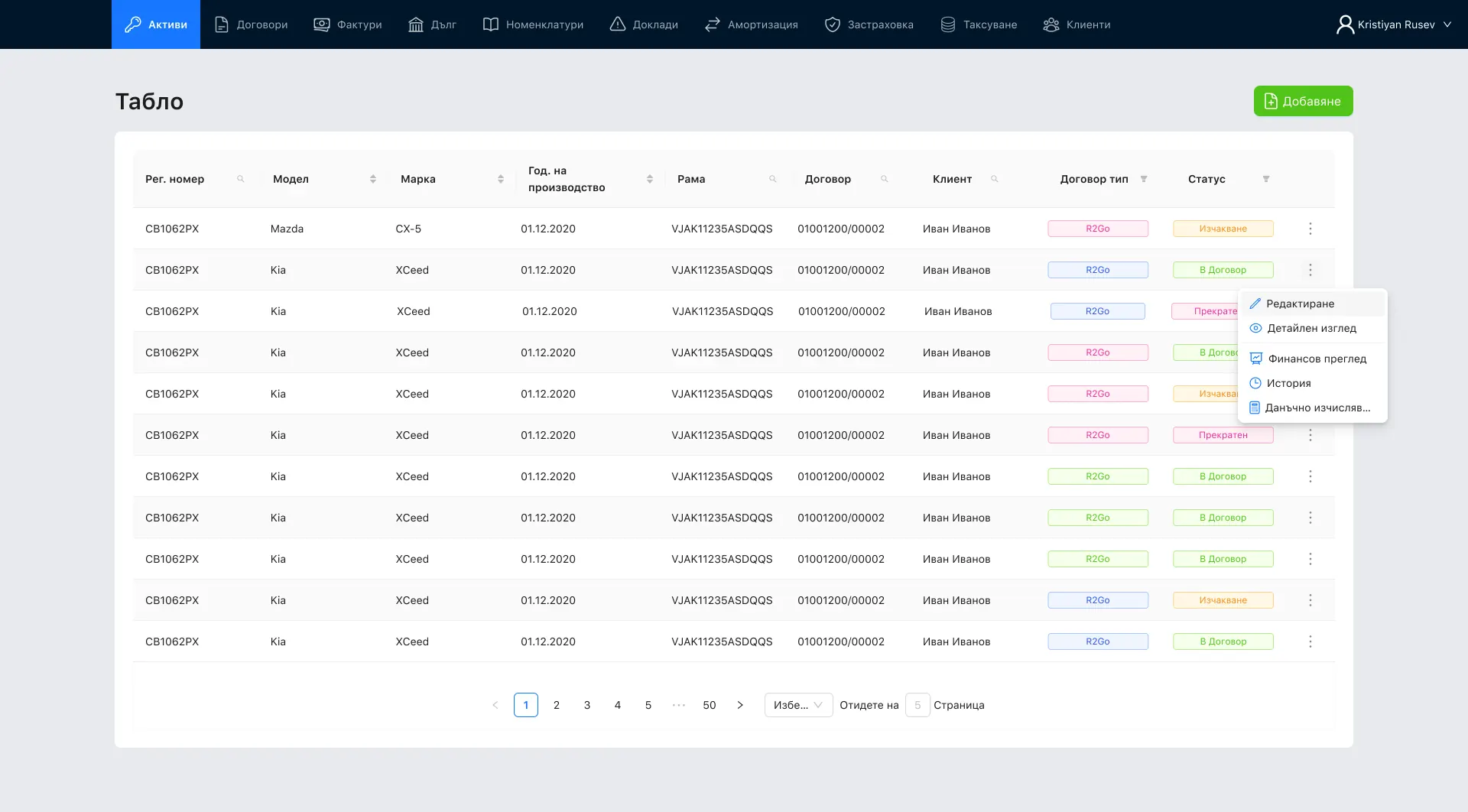
The system opens on the fleet board: every car by plate, model, make, year of manufacture, VIN, contract, client, contract type and status, with sorting, search and filters in the column headers. The contract type is a coloured tag, and the car's status — waiting, in contract or terminated — is a second tag beside it.
Each row ends in a menu of what can be done to that car: edit, detailed view, financial review, history and tax calculation. Select several rows and the same actions rise into the toolbar above the table; adding a car returns to the board with a confirmation.
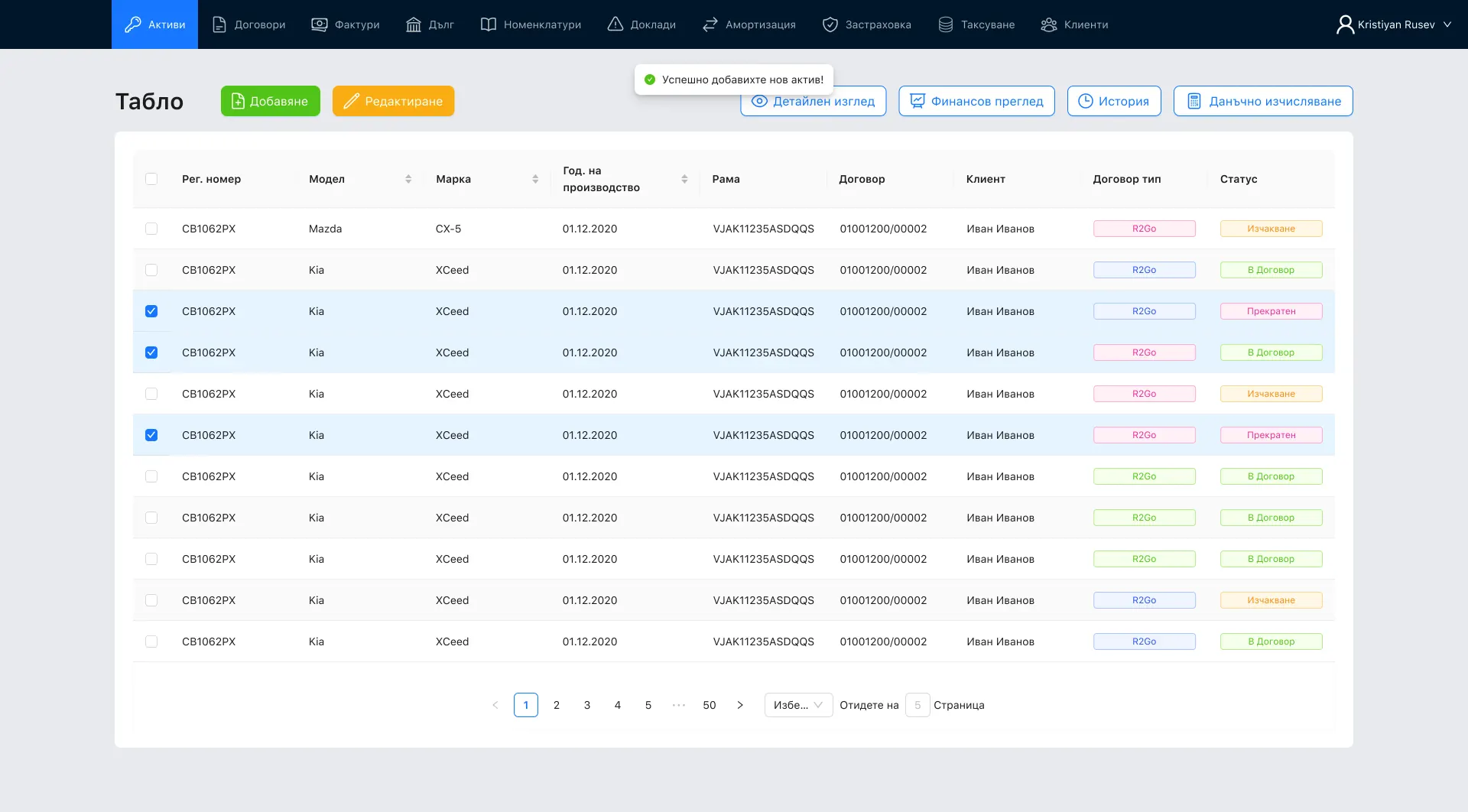
Design file · The board after a car is added, with three rows selected. The board with a row's menu open is the first screen at the top of this page.
- 02
Adding a car in five steps, with the gaps flagged
A car is added in five steps listed down the side: information, documents, prices, finance and status. The first asks for the make, model, type, body, engine and fuel figures and the supplier. A required field left empty is outlined in amber with a warning mark, and a note above the button says the form cannot be sent until it is filled.
Every step continues with the same blue button; the last one finishes in green. Editing and viewing a car reuse the same stepped layout.
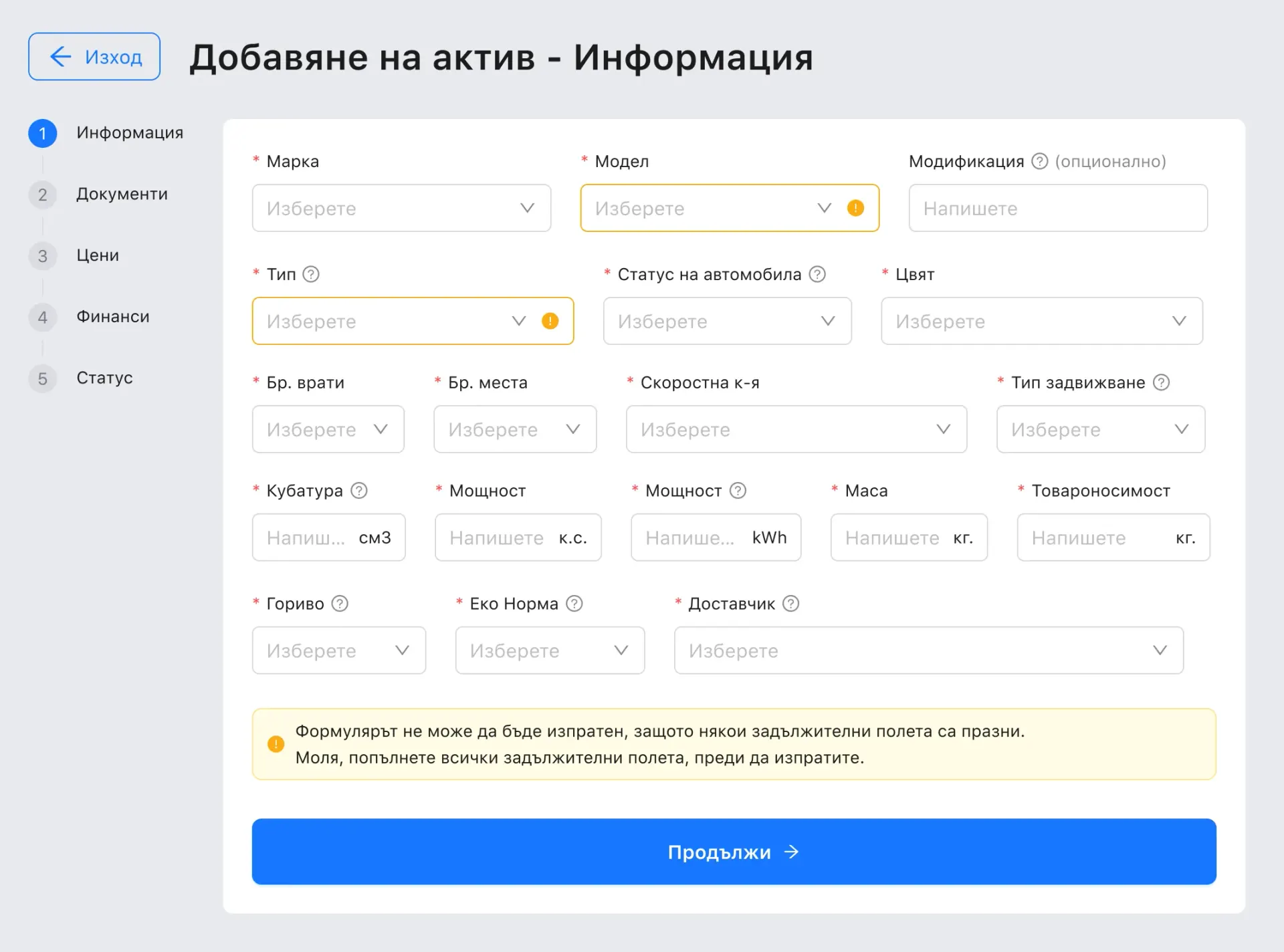
Step 1 · information 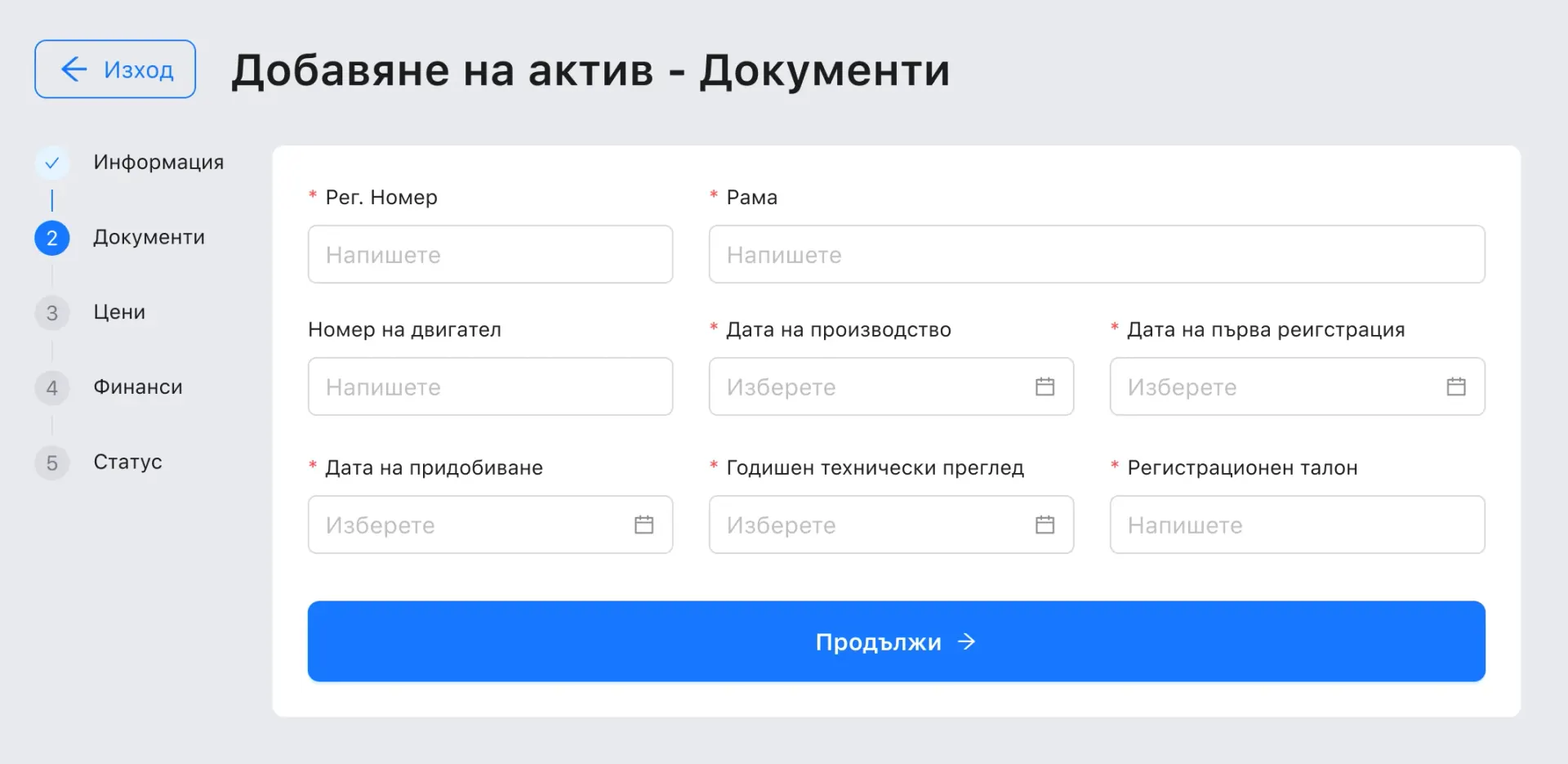
Step 2 · documents 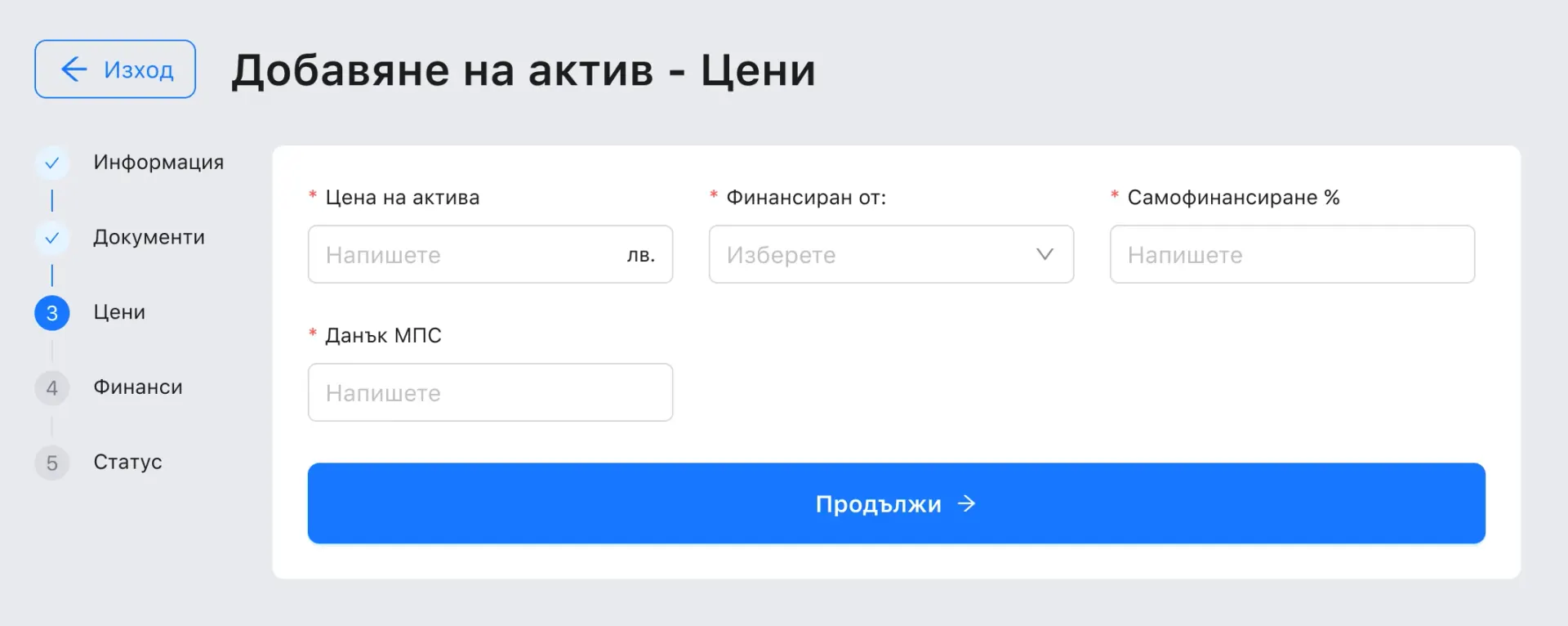
Step 3 · prices 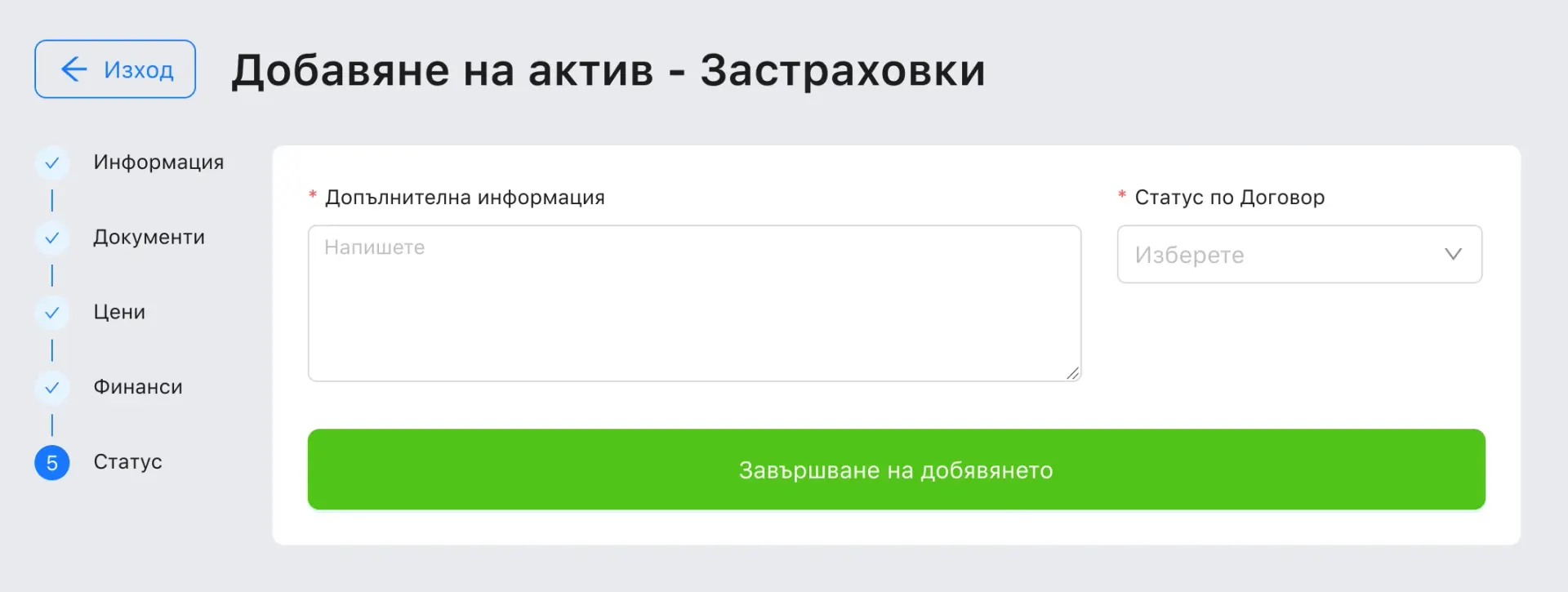
Step 5 · status Design file · Steps one, two, three and five of adding a car.
- 03
What a car earns, counted two ways
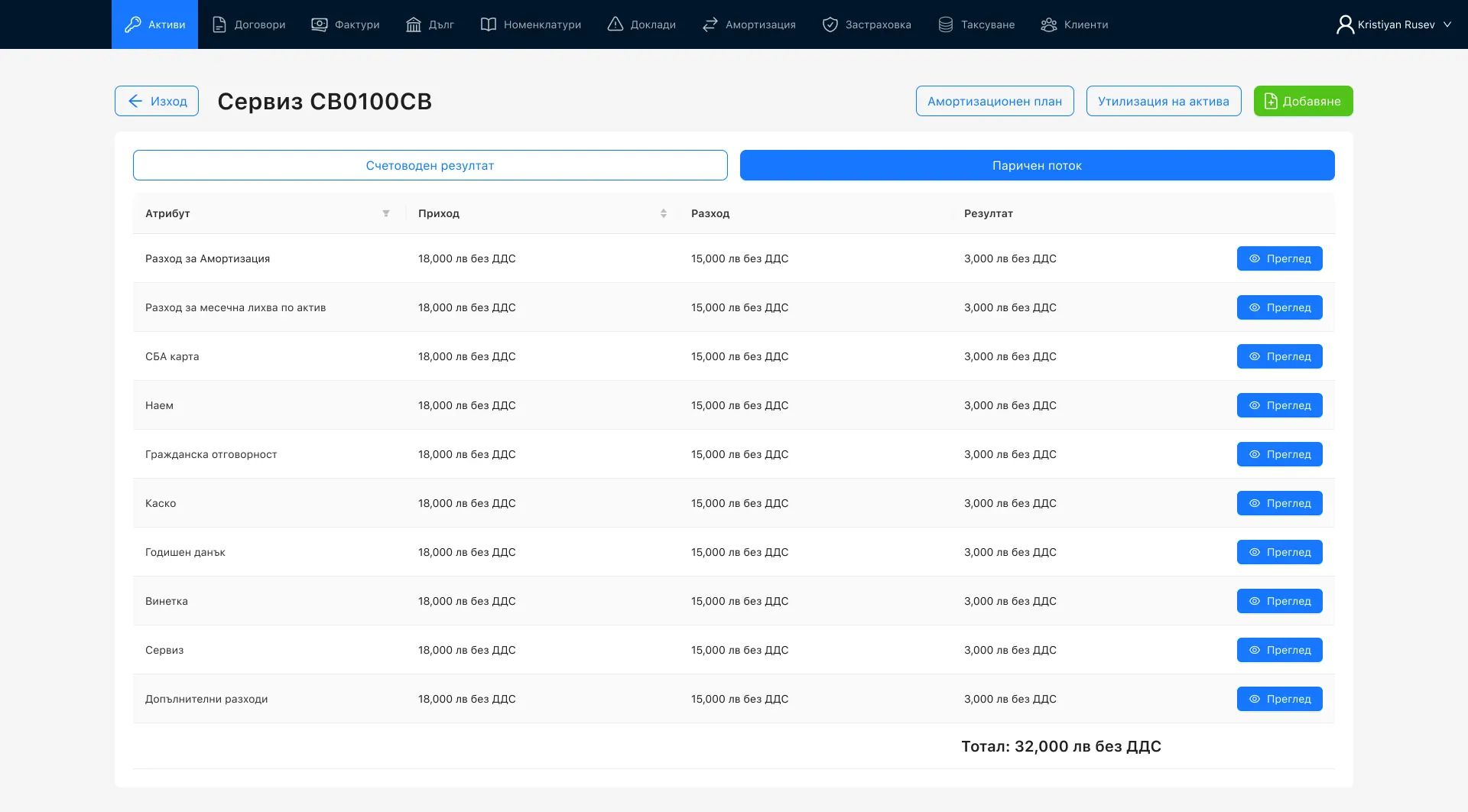
Each car has a financial view with two tabs, the accounting result and the cash flow. Both list the car's lines — rent, interest, civil liability and comprehensive insurance, the annual tax, the vignette, service and more — with income, expense and result on each, and a total in leva without VAT.
From the same screen, the amortisation plan gives the purchase price, residual value, amortisable value and period, then the book value month by month. The utilisation history lists each contract the car served, how it ended, its accumulated costs and income, and the result.
Cash flow 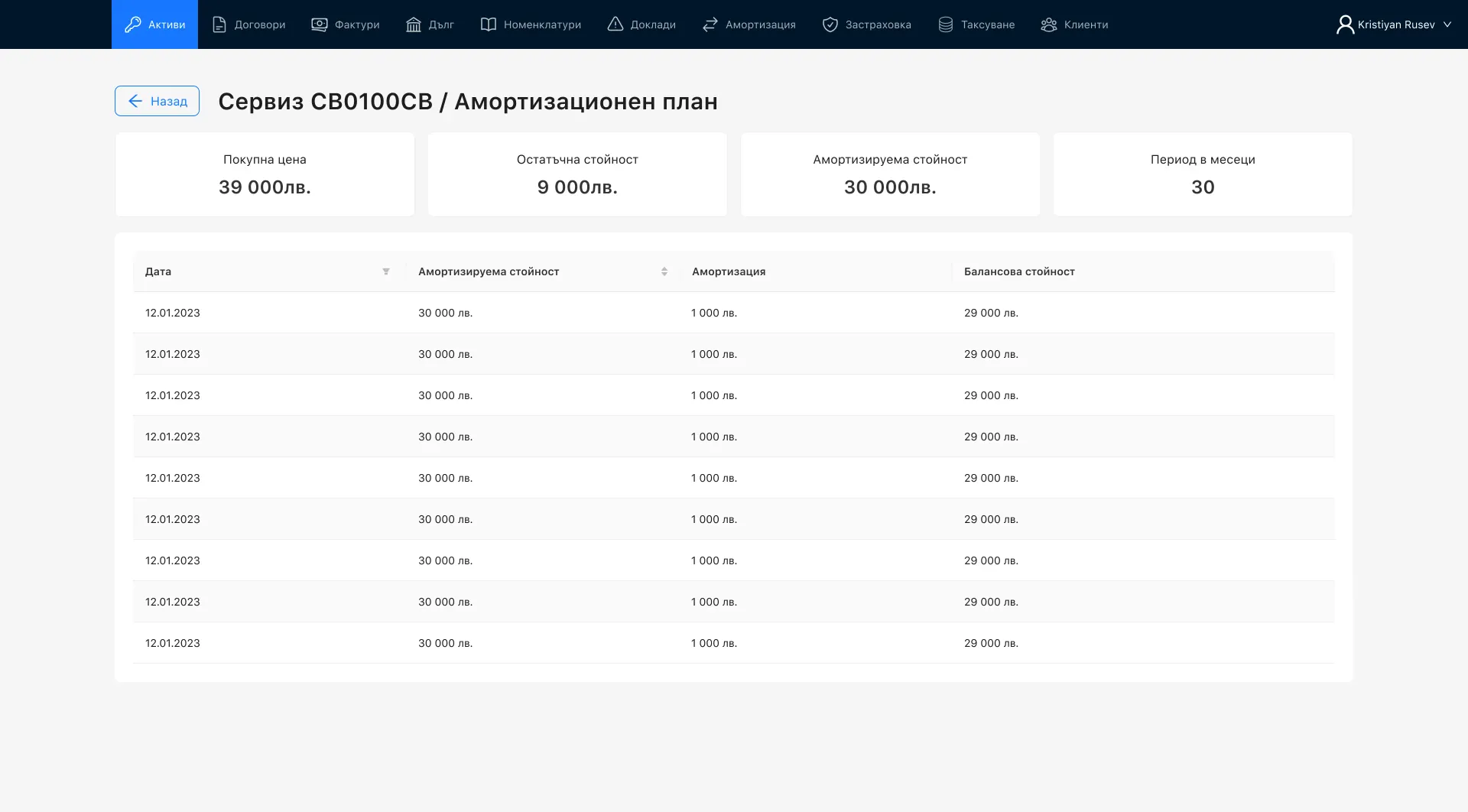
Amortisation plan 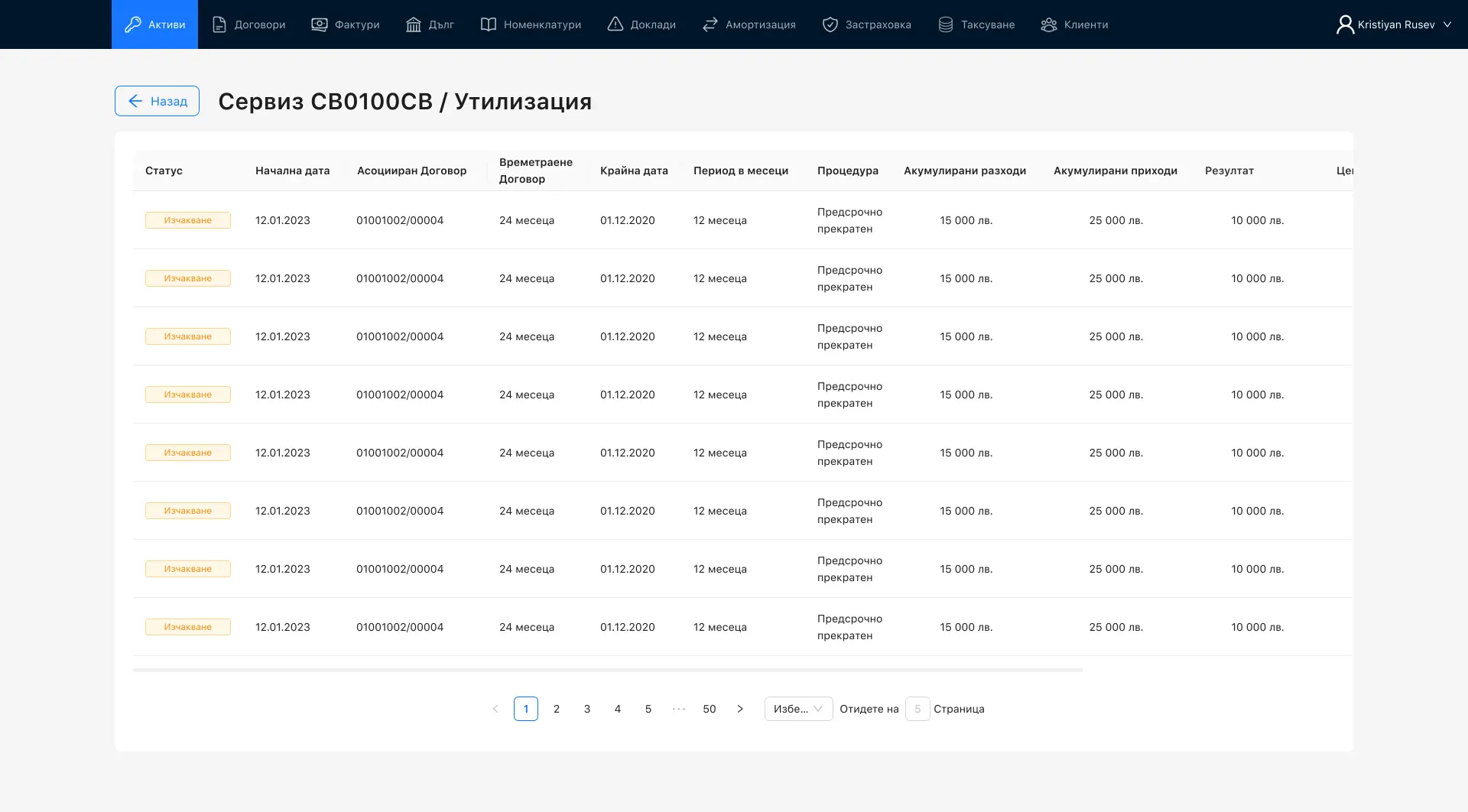
Utilisation history Design file · A car's cash flow, its amortisation plan and its utilisation history.
- 04
Every counterparty in one search
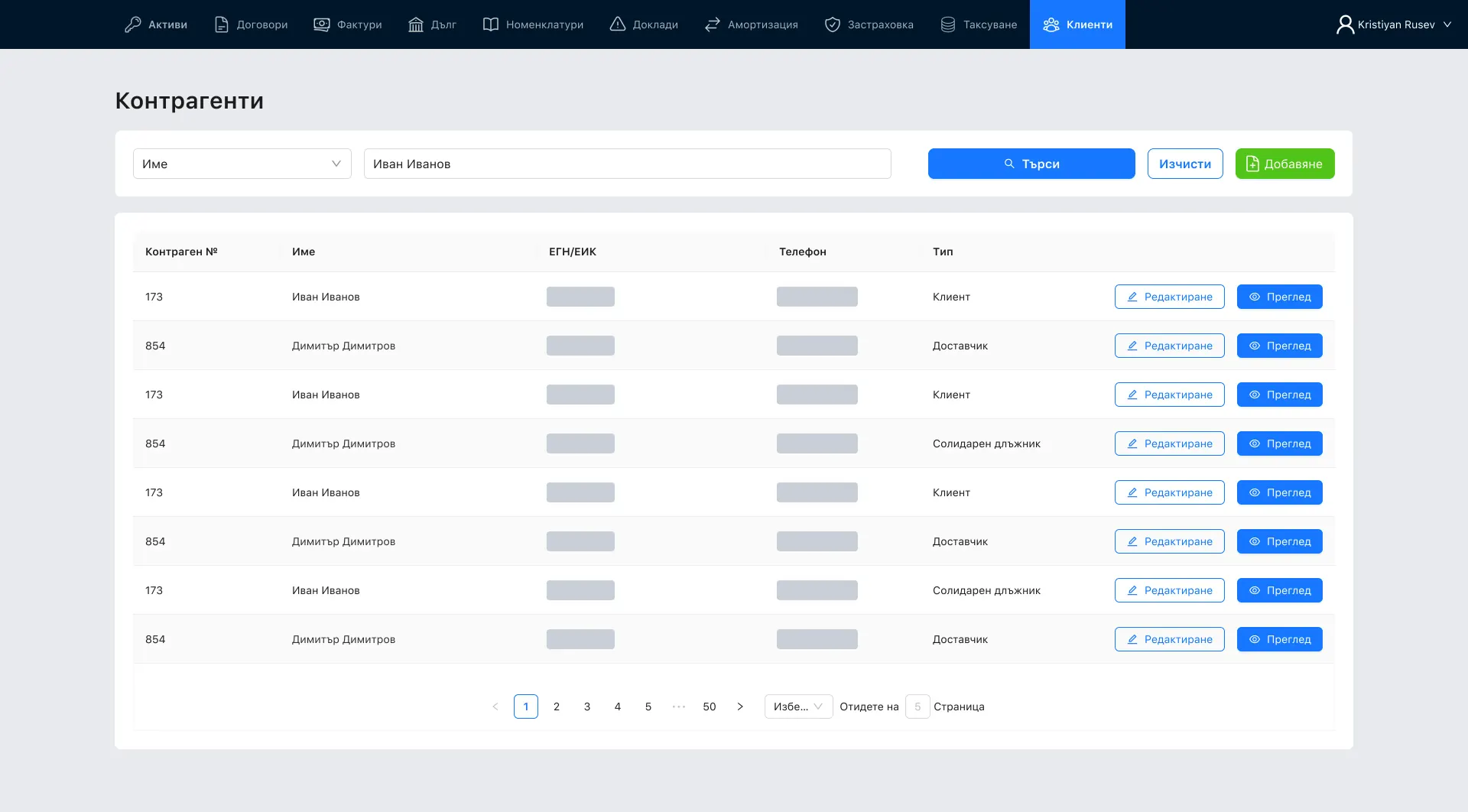
Clients, suppliers and co-debtors are one list of counterparties. The search runs on the field picked beside it — number, name, ЕГН, address, company name, ЕИК or VAT number — and each result shows the counterparty's role, with edit and view.
A counterparty's page lists every contract it is part of, with the date, its role in that contract and whether the contract is active or expired: the same person can be the client in one contract and a co-debtor in another.
Search and results 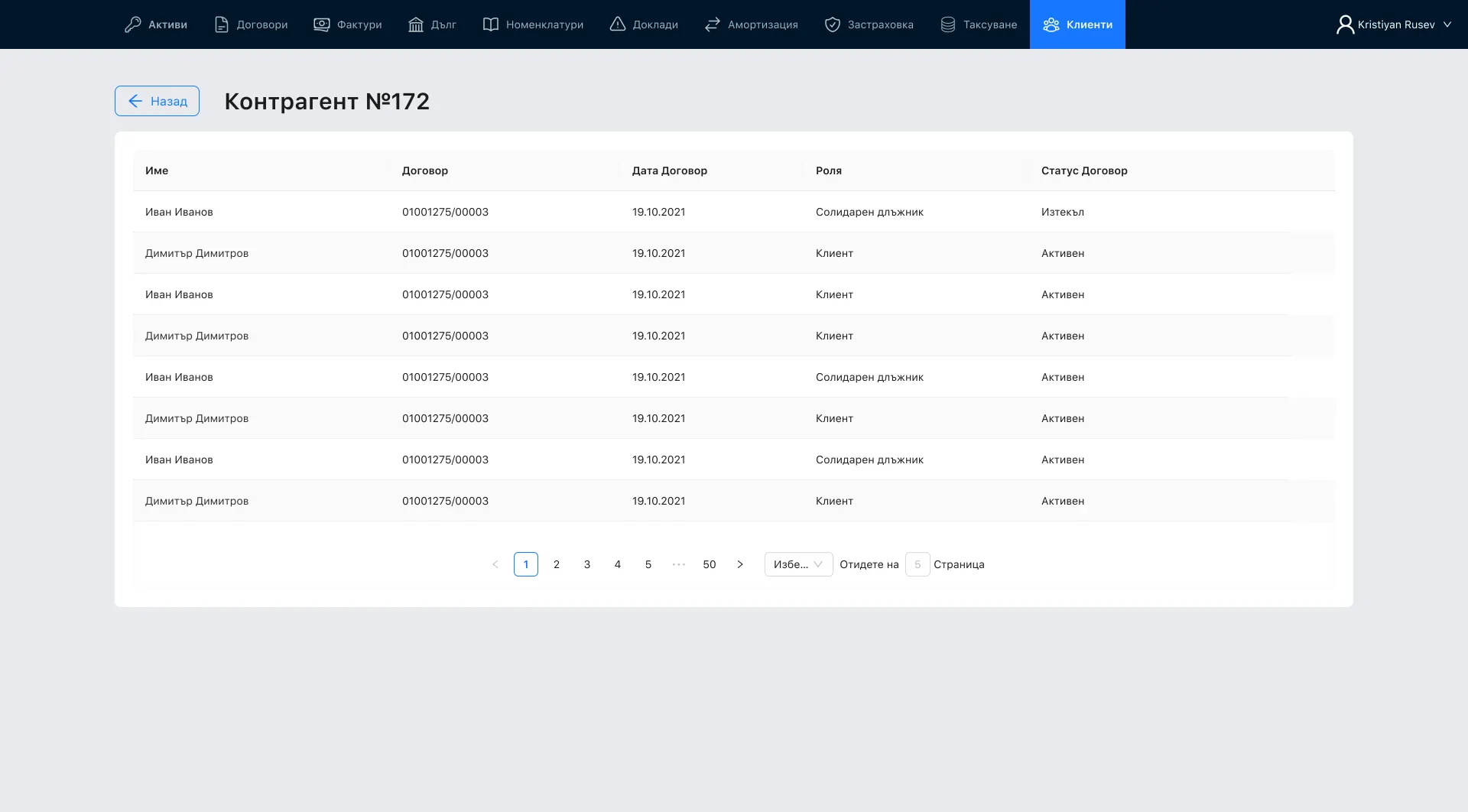
A counterparty's contracts Design file · The search results and a counterparty's contracts. ID and phone numbers are masked.
- 05
The form follows the kind of client
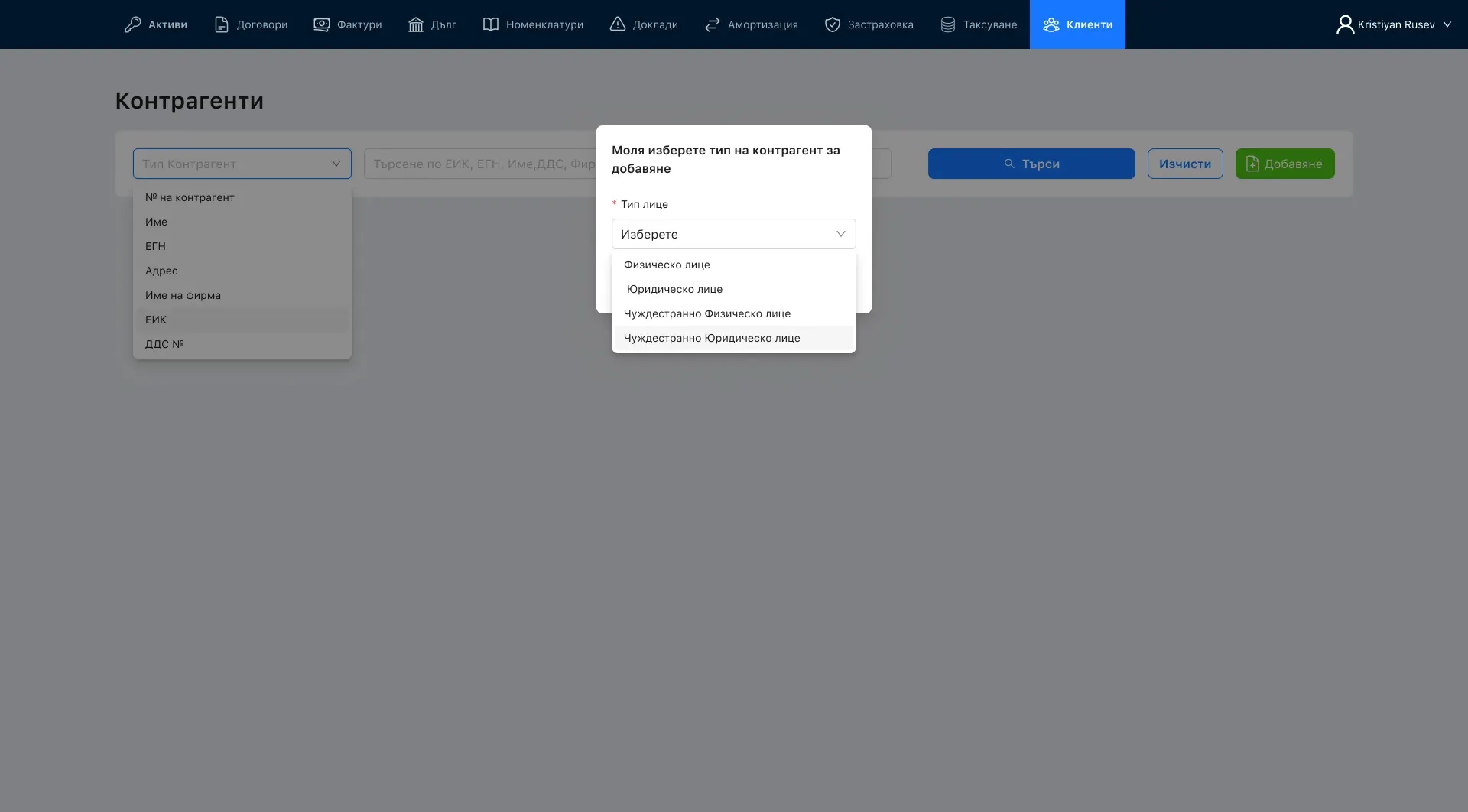
Adding a counterparty starts with one question in a dialog: is it a natural or a legal person, Bulgarian or foreign. Each answer opens its own sequence. A company asks for its ЕИК and VAT number, its registered and correspondence addresses — with a switch for when they are the same — and its industry, then its representatives and contacts. A person asks for the ЕГН, the ID card and who issued it, and a contact person.
A representative is added inside the company's form, and can itself be a company: a switch in the representative's heading turns it into a legal person.
Which kind of counterparty 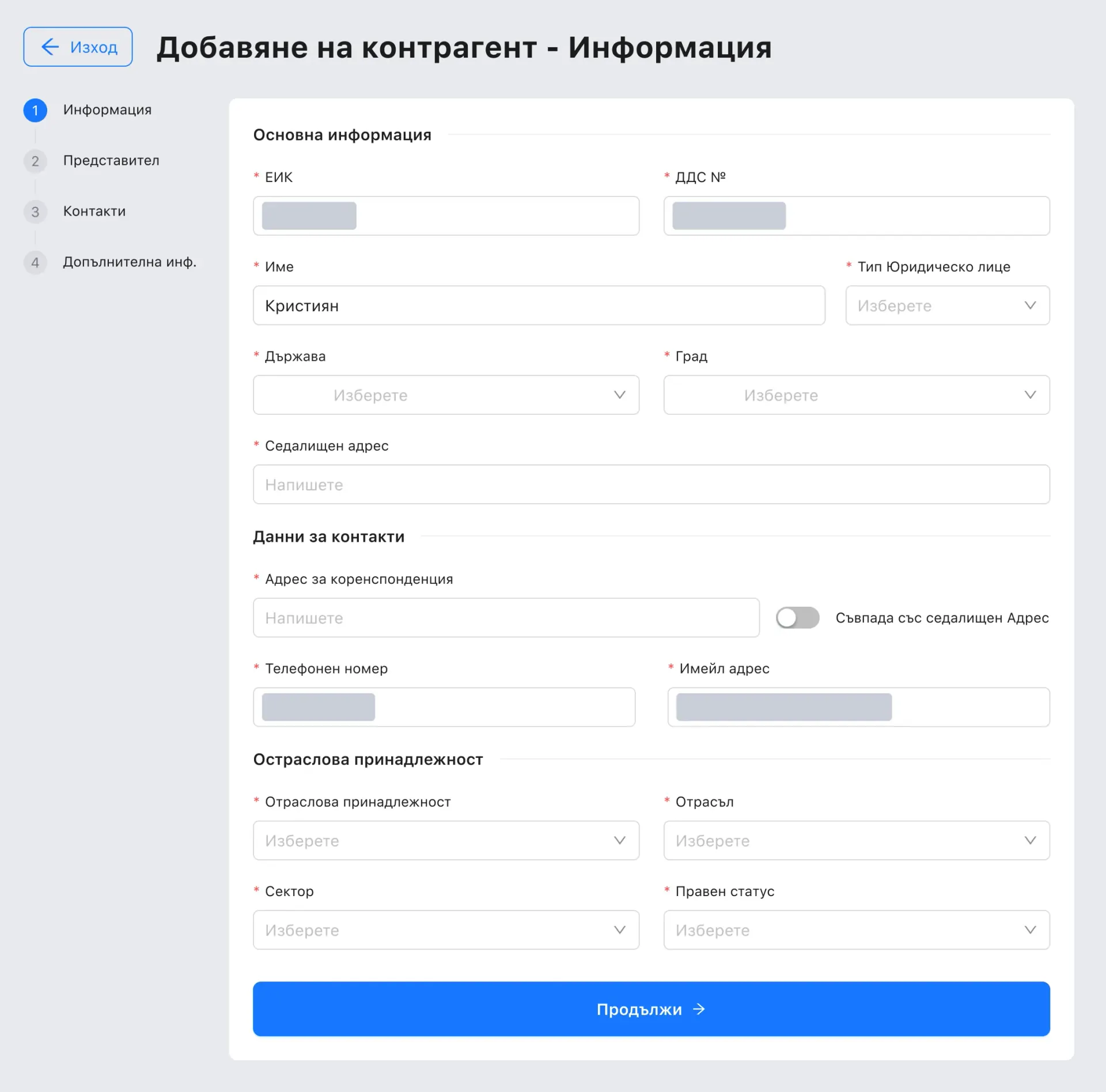
A company · step 1 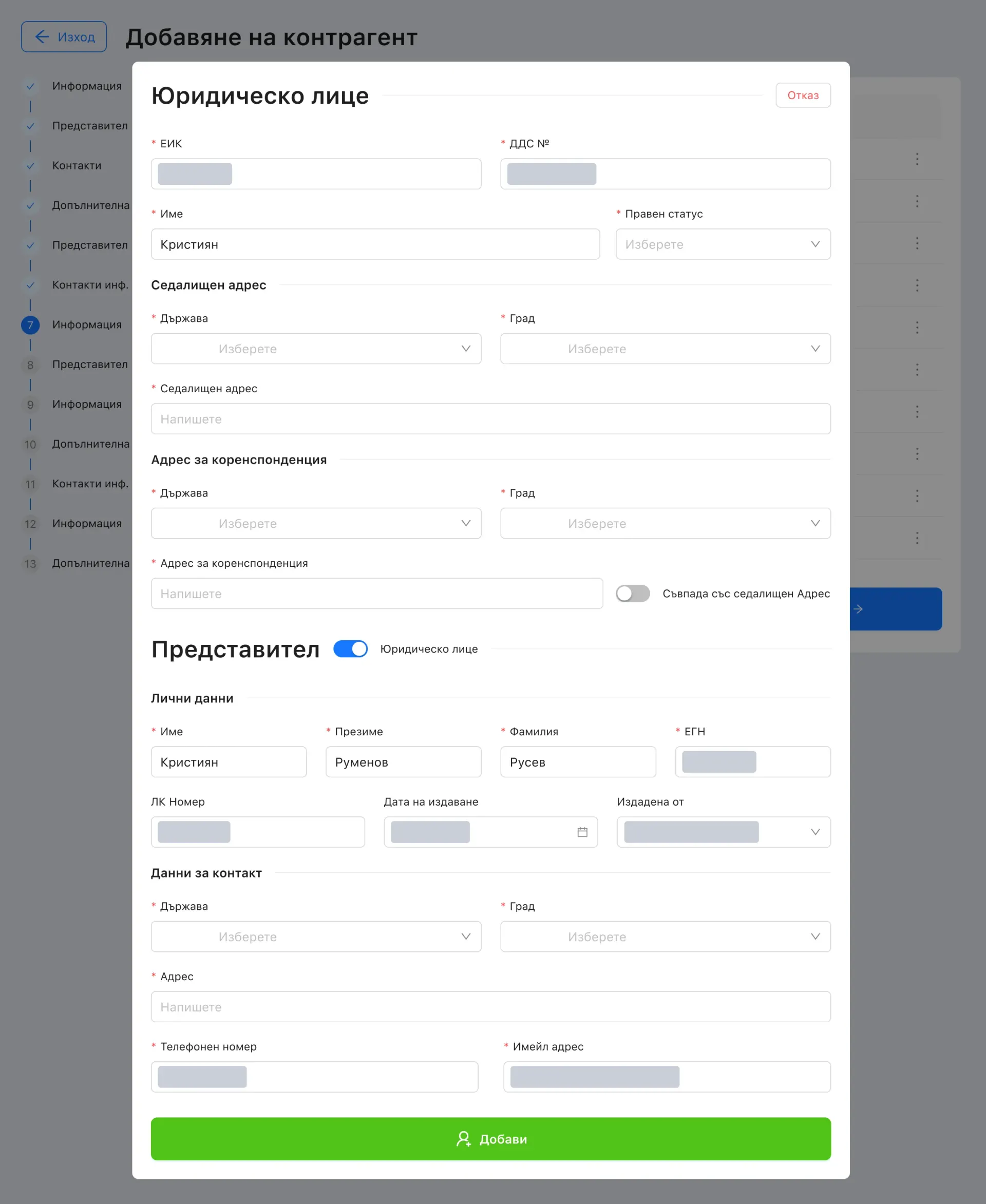
Its representative 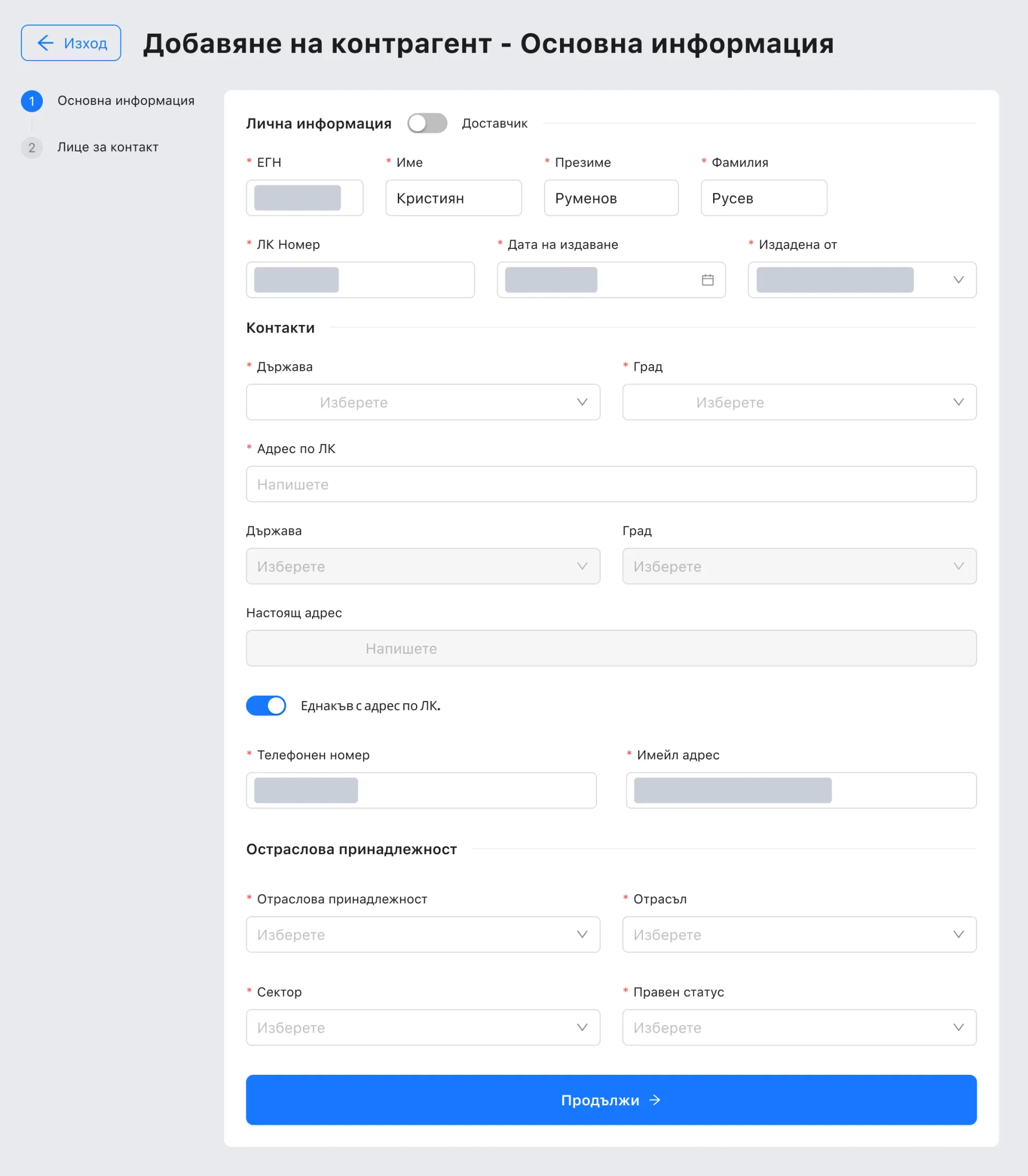
A person · step 1 Design file · The type dialog, a company's first step, its representative, and a person's first step. ID numbers, ID-card details, phones and emails are masked.
- 06
One contract wizard, four products
Contracts are generated in one wizard, with the product named in its title: pure rent, rent with costs included, Ready 2 Go and SIMPL. Pure rent runs in four steps — information, data, terms and total — and SIMPL adds a fifth for costs. The first step picks the contract type, the client and an optional proxy, and adds co-debtors; an offer can be uploaded from the top.
The terms hold the lease's figures — asset price, deposit, term, residual value, interest, mileage and the price per extra kilometre — with the bank, the Euribor period and a switch for indexation. The costs step lists each included cost, whether it carries VAT, and its cost over the contract and per month, and totals both.
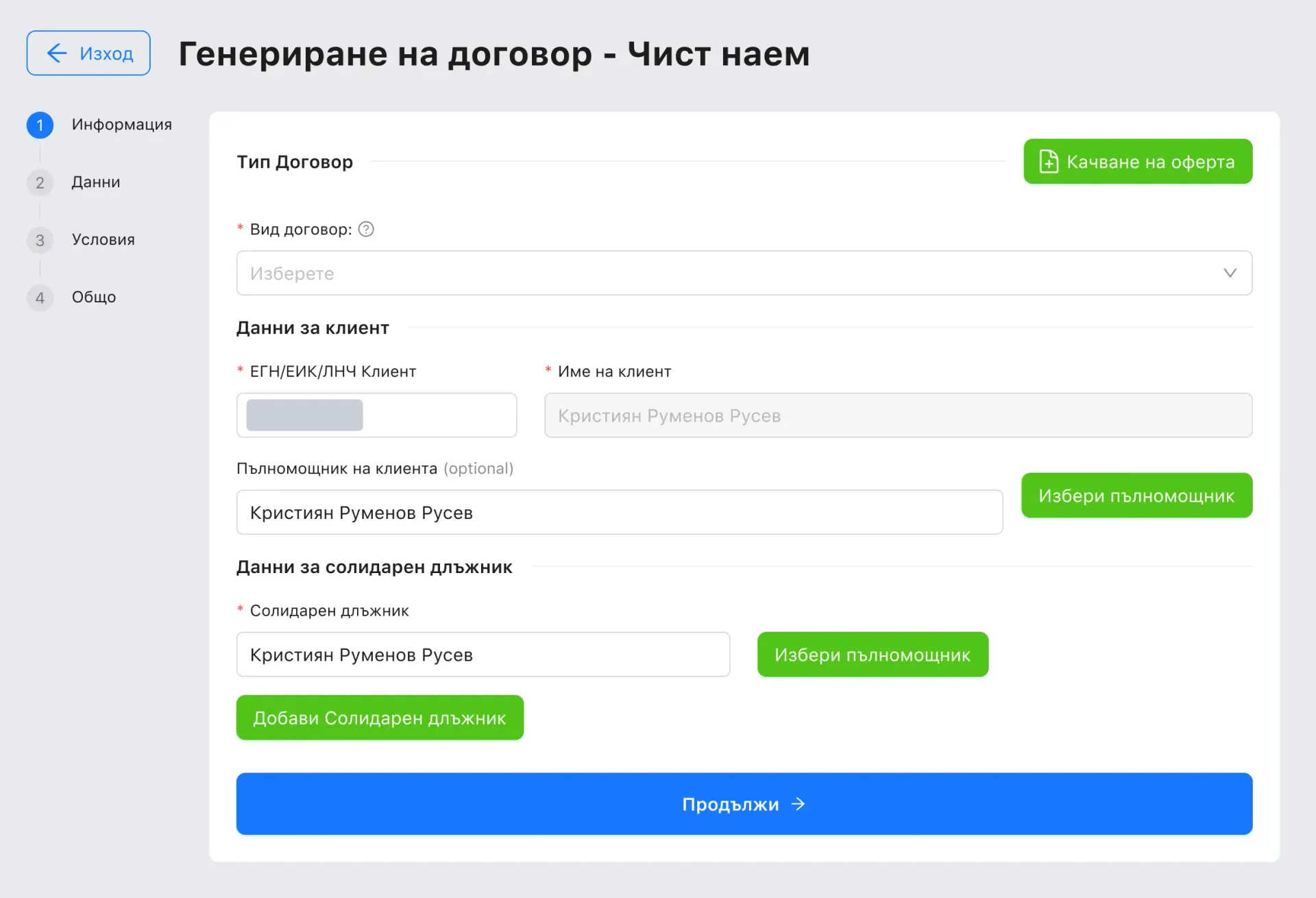
Pure rent · step 1 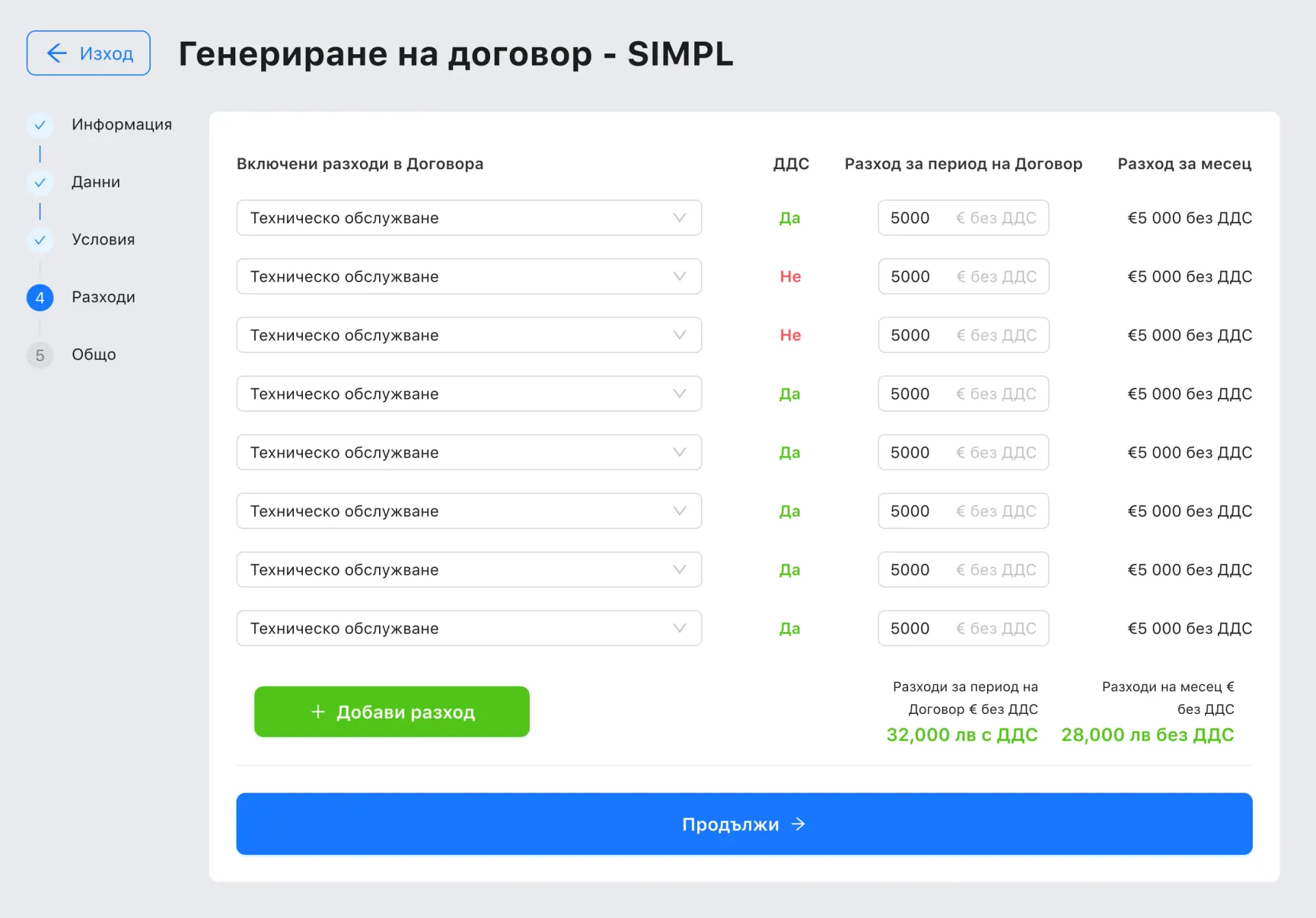
SIMPL · costs 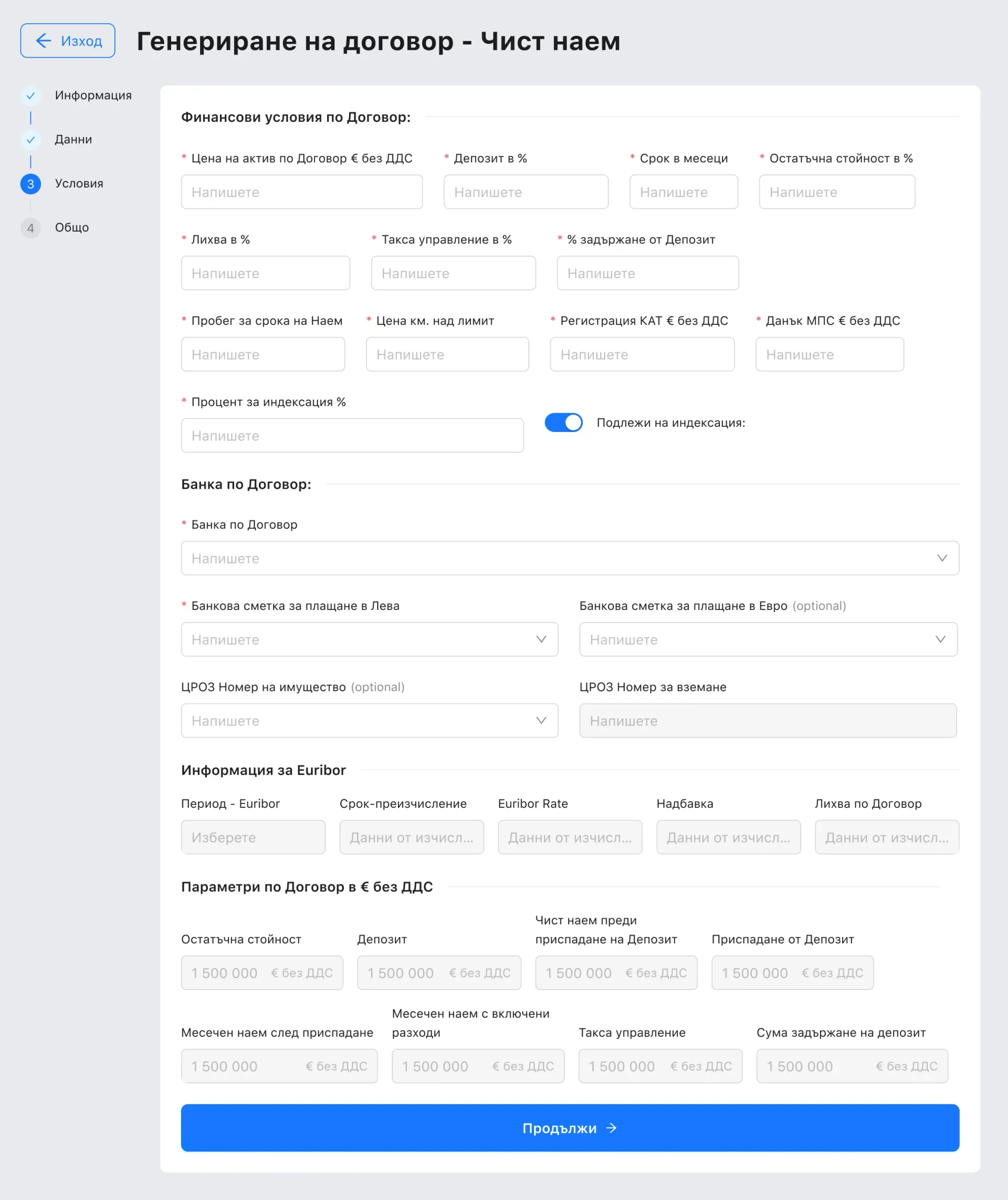
Pure rent · terms Design file · A pure-rent contract's first step and its terms, and SIMPL's costs. The client's ID number is masked.
03 · What I delivered
What I delivered
UX flows and UI for the back office: the fleet board; adding, editing and viewing an asset in five steps; its finances — accounting result, cash flow, amortisation plan and utilisation history; the counterparty search and detail; onboarding for natural and legal persons, Bulgarian and foreign; the contract wizard for four products; sign-in; and a layout kit with three menu states.
04 · What I would revisit
What I would revisit
I kept Ant Design's colours exactly as they ship, and two of them fail where they carry words: white on the green buttons — add, finish adding, generate contract — reads 2.27:1, and the status tags' text, such as В Договор and Изчакване, reads about 2.2:1 on their pale grounds. I would darken the green and the tags' text tones and keep the hues.
I would also tidy the wording before handoff. Steps four and five of adding a car are both titled Застраховки while the side says finance and status, and money is written three ways across the finance screens — 18,000 лв, 39 000лв. and 15 000 лв. — on screens a finance team reads all day.
Project note
The screens are the design file's own, with its sample data. Every ID number, phone number and email in them is covered with a grey bar, because the sample records use real-format numbers. The names, plates and contract numbers are samples.
05 · Explore the system
Explore the system
The system stands on Ant Design's palette, to the hex: a navy bar, one blue for moving on, green for adding and committing, amber for what is missing, red for errors.
- Type
- SF Pro Text
- Modules
- 10
- Contract products
- 4
- Kinds of client
- 4
Colour and typography6 colours
- Blue
- #1677FFContinue, search, view, the active module and the current step. White on it is 4.10:1.
- Green
- #52C41AAdd, finish and generate — the actions that create something. White on it is 2.27:1; see What I would revisit.
- Amber
- #FAAD14A required field left empty, and the warning above the button.
- Red
- #FF4D4FRequired-field asterisks and errors.
- Ground
- #E8EAEFThe page ground under the white cards.
- Bar#001529The top bar with the ten modules; the active module is a blue tab on it. White on it reads 18.43:1.
Hex values from the design file's fills — they are Ant Design's own default tokens; ratios measured against white unless another ground is named.